
Export your video
Choose an export format, resolve Studio-only clip requirements and verify video, sound and timing in the file your audience will receive.
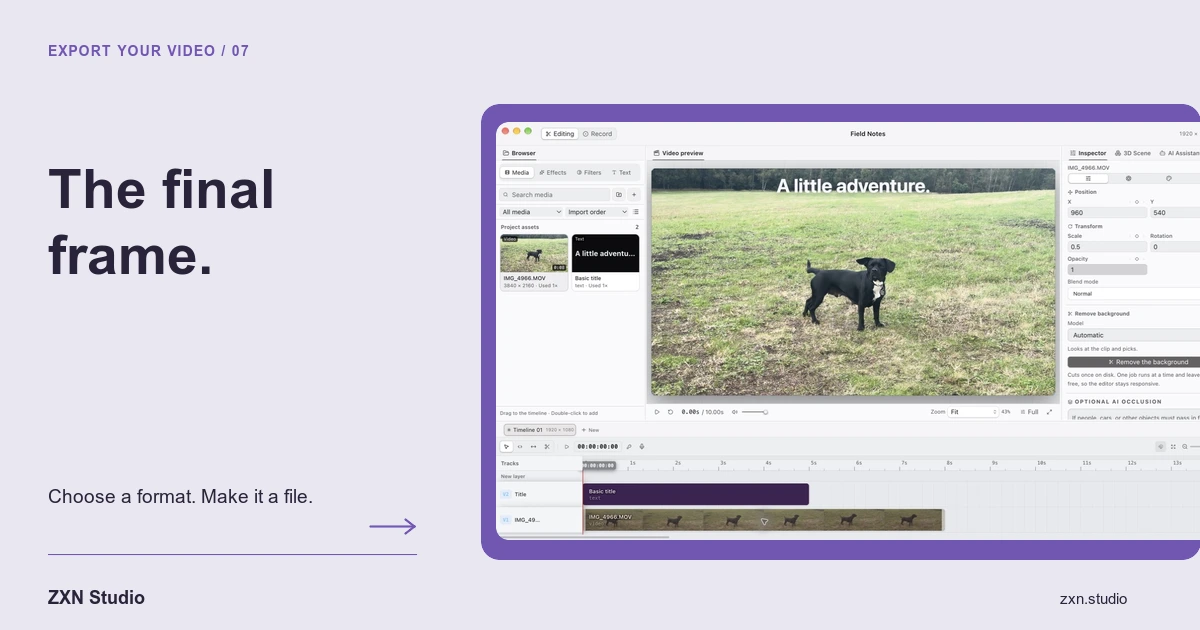
Exporting turns your editable ZXN Studio project into the file someone else will watch or use. Choose settings for that destination, resolve any plan restrictions and inspect the completed file outside the editor. A good timeline preview is not a substitute for this final check, especially when a project includes background removal, motion graphics or several overlapping layers.
Current builds show MP4 H.264/AAC, MOV H.264/AAC, WebM VP9/Opus and supported native ProRes master formats. The appropriate choice depends on the receiving workflow, not on which filename sounds most professional.
Establish the delivery requirements first
Before opening export controls, confirm the requested dimensions, frame rate and accepted format with the person or platform receiving the video. For a website, test the actual player and browsers you intend to support. For another editor, ask what kind of master file it expects.
Also decide whether this is a review copy or a final deliverable. A review copy needs to communicate timing and content; a master for further work may have different requirements.
Keep the editable project and source media. An exported video is not a replacement for the separate screen, camera, title and effects decisions in your timeline.
Understand the format choices
MP4, MOV and WebM are containers; H.264 and VP9 describe video encoding, while AAC and Opus describe audio encoding. MDN's media-format guide explains why container and codec compatibility must be considered together.
MP4 with H.264 and AAC
Use this combination when it matches your recipient's upload or playback requirements. It is a practical starting point for many delivery tests, but still check the completed file in the target environment rather than promising universal playback.
MOV with H.264 and AAC
Choose MOV when the receiving workflow requests that container. A MOV file containing H.264 is not automatically a ProRes master, and changing the container alone does not establish higher image quality.
WebM with VP9 and Opus
Consider WebM where the receiving website or application supports that combination. Verify both picture and sound in the real destination. Do not infer transparent-background support from the container name.
Supported native ProRes masters
Studio adds supported native ProRes master formats. Select the option actually offered by your build and confirm it meets the receiving editor's requirements. Do not assume every ProRes variant, alpha-channel mode or hardware configuration is supported.
Set resolution and frame rate intentionally
Free includes recording and export up to 1080p at 30 fps. Studio adds 4K and 60 fps options. Choose an output that suits your source material and destination rather than automatically selecting the largest values.
A higher output resolution cannot recover interface detail absent from the source. Similarly, selecting a higher frame rate is not a promise to recreate motion that was never captured. Review text readability, movement and composition using an actual test export.
If you are still planning the recording, consult screen and camera capture so the source and delivery requirements are considered together.
Resolve Studio-only clips before delivery
Free allows previews of Studio-only features. During export, ZXN Studio identifies clips requiring Studio. Review those clips individually: the restriction may come from a title style, effect, cutout model or another paid treatment rather than the selected output dimensions.
To remain within Free, replace or remove the restricted treatment and keep the output within Free limits. Alternatively, choose a suitable Studio plan through plans and billing.
Do not assume a previewed treatment will silently become a Free-compatible version. Recheck the project after every replacement because changing an effect can alter composition or readability.
Check the completed file systematically
Open the export outside ZXN Studio. Watch the opening and ending, then play through every cut, title transition and difficult effects section. Listen to the narration throughout, including any point where you shortened a pause.
Inspect small interface text and moving edges at the intended viewing size. For cutouts, check whether hands or hair disappear during movement. For motion graphics, verify that wording remains readable through entrances and exits.
Finally, test the file in its actual destination. Successful local playback is useful, but it does not prove a particular upload workflow or embedded player accepts the same format.
Troubleshoot one variable at a time
If export fails, note the settings and any reported clip before making changes. Confirm sources remain available and the destination has space, then try a small representative project using a format already offered by the build.
If the result differs from your expectation, simplify the affected layers or treatment and compare a fresh export. Separate an entitlement warning, a source problem and a playback problem rather than treating them as one issue.
Delivery is complete when the exported file has been checked in context. Keep that checked version clearly named, alongside the project and sources needed for revisions.