
System requirements
Check the macOS recorder requirement, permissions, source media, storage and export needs before committing to a ZXN Studio workflow.
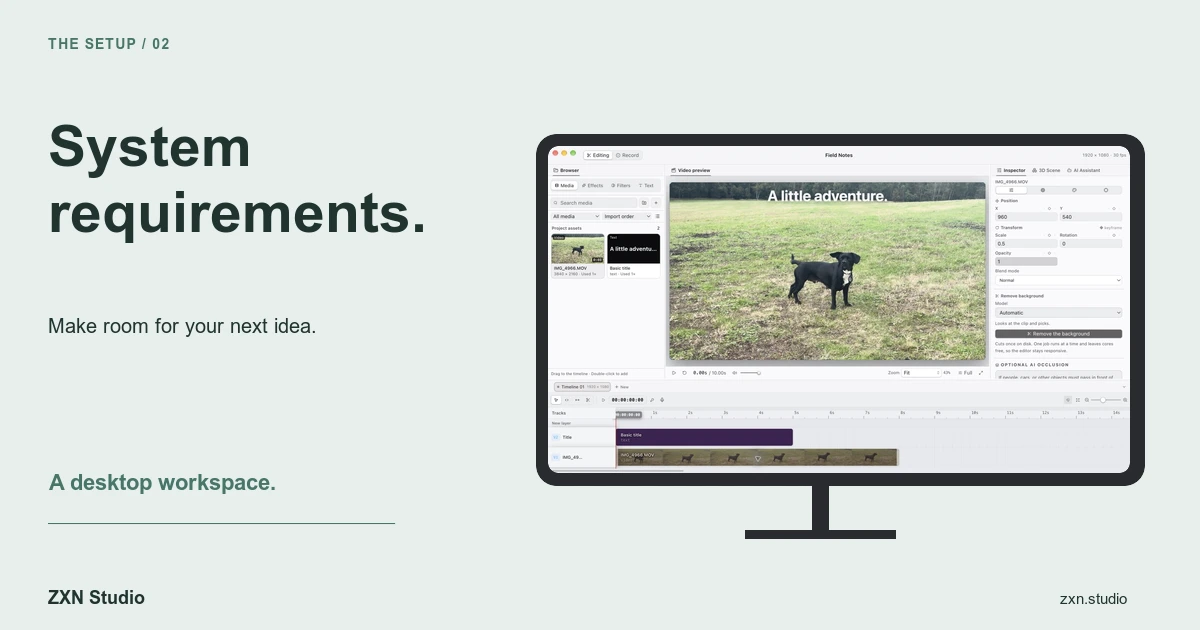
The current ZXN Studio native recorder targets macOS 26 or later. Start there when checking whether you can record on your Mac, but do not treat an operating-system version as a guarantee for every editing workload. Recording access, source media, available storage and the features you intend to export each need their own check.
Check the requirements supplied with your chosen build for hardware-specific details. The practical checks below help you confirm that your own recording, media and delivery workflow works before you commit to a long project.
Check the build and the task separately
Compare your Mac's operating-system version with the information supplied for the current download. The macOS 26 requirement here applies specifically to the current native recorder. Do not infer support for an older editor installation, another platform or a particular codec from that statement alone.
Next, define the job. A screen demonstration with one camera layer is a different test from a composition using several video layers, background removal and motion graphics. Write down the resolution, frame rate, input devices and effects your actual project needs.
Use that list to create a representative test rather than judging suitability from whether the application opens.
Give capture the permissions it needs
macOS controls which applications may record the screen. Apple documents those controls under System Settings, Privacy & Security, in its screen-recording permissions guide. Review ZXN Studio's access when capture is unavailable, and follow any restart or relaunch prompt shown by the system.
Microphone permission is a separate check. Apple's microphone access guide explains where to enable it. For camera recording, also review the camera permission requested by the application.
The wording of a macOS permission category is not a ZXN Studio feature list. Even where system settings mention audio recording, ZXN Studio's current Mac recorder does not capture desktop/system audio.
Verify your camera and audio input
ZXN Studio can record a camera and a microphone or audio-interface input alongside the screen on Mac. Select the intended devices and record a short spoken test. Check the completed media for sound, framing and synchronisation before recording anything important.
Do not assume that every camera, interface, driver or input configuration will behave identically. Check whether your chosen device is offered and whether the resulting recording contains what you expected. A device working in another application is useful evidence, but not a completed ZXN Studio test.
For step-by-step preparation, use screen and camera recording.
Plan storage around the whole project
Allow room for source recordings, project files, any required model downloads and finished exports. Keep more than just the final delivery file: deleting the originals can prevent later revisions, even if an earlier export still plays.
Instead of relying on a generic storage estimate, record a representative sample using your planned settings and inspect its actual size. Use that as a planning reference, leaving additional headroom for retakes and alternative exports. It is an estimate, not a fixed size guarantee.
If you store sources on another drive, confirm they remain accessible when you reopen the project. ZXN Studio supports relinking moved media, but the correct source must still exist.
Test media and optional processing
Import a sample from each source you expect to use. Play it, make an edit and export a small test project. A filename extension alone should not be your compatibility test; verify the actual file through the complete workflow.
Background removal runs locally and uses subject-appropriate models. Optional AI/Codex services are separate and may require their own account, a model download or additional charges. Do not assume a Studio purchase supplies every external service or removes every setup requirement.
Add demanding treatments individually. This makes it easier to identify whether a problem comes from the source, the effect or their combination.
Separate plan limits from technical problems
Free includes recording and export up to 1080p at 30 fps. Studio adds 4K, 60 fps and supported native ProRes master formats, alongside its additional creative features. Consult plans and billing before designing around a paid capability.
Studio-only features can appear in a Free preview; export identifies clips requiring Studio. That is an entitlement check, not evidence that your Mac lacks processing power.
Similarly, uneven preview playback does not by itself establish how the exported file will play. Inspect an actual export using your intended delivery settings.
Your readiness check
Proceed once the correct inputs record, representative media edits successfully, sources remain accessible and a test export meets your requirements. Keep a note of the build, operating system and settings used. Those details make future troubleshooting more useful than a broad statement that the Mac is 'fast enough'.